


TikTok is full of beautiful wallpapers, from peaceful landscape photos to short animated loops. When one catches your eye, you probably want to save it exactly as it appears on screen.
What Type of TikTok Wallpaper Do You Want to Download?
TikTok wallpapers generally come in two forms: photo or slideshow posts, and videos designed for live wallpapers. TikTokio handles both, but the file you receive will be different.
Photo and Slideshow Wallpapers
A TikTok photo post may feature a single wallpaper or a slideshow of several images. You can swipe through the post and choose the picture that best fits your screen.
TikTok has its own Save photo option when the creator allows downloads. For posts with several pictures, TikTok may also let you select and save multiple photos. However, these files always include TikTok branding. You have to manually crop it out to make the wallpaper look nice on your phone. The download option may also be unavailable when the creator has disabled it.
TikTokio lets you save publicly shared TikTok photos and slideshows without a watermark, even when there are no download options. It separates the images instead of turning the slideshow into a video, so you can save each wallpaper as an individual photo.
Video and Live Wallpapers
Video wallpapers are very popular on TikTok nowadays. They are moving TikTok posts designed to work as animated backgrounds. They may use a short loop, a subtle animation, or a longer scenic video.
TikTok offers a wallpaper option on mobile devices, but it does not always give you a clean video file that you can keep. The result may also look less clear after TikTok processes it for the wallpaper feature.
TikTokio downloads the video as a watermark-free MP4 in the highest available HD quality. You can keep the file, trim it, or use it with your phone’s live wallpaper feature.
How to Download TikTok Photo Wallpapers Without a Watermark
You do not need to take screenshots or crop TikTok buttons out of the picture. TikTokio can retrieve the photos directly from the public post.
Step 1: Open the TikTok Photo Post
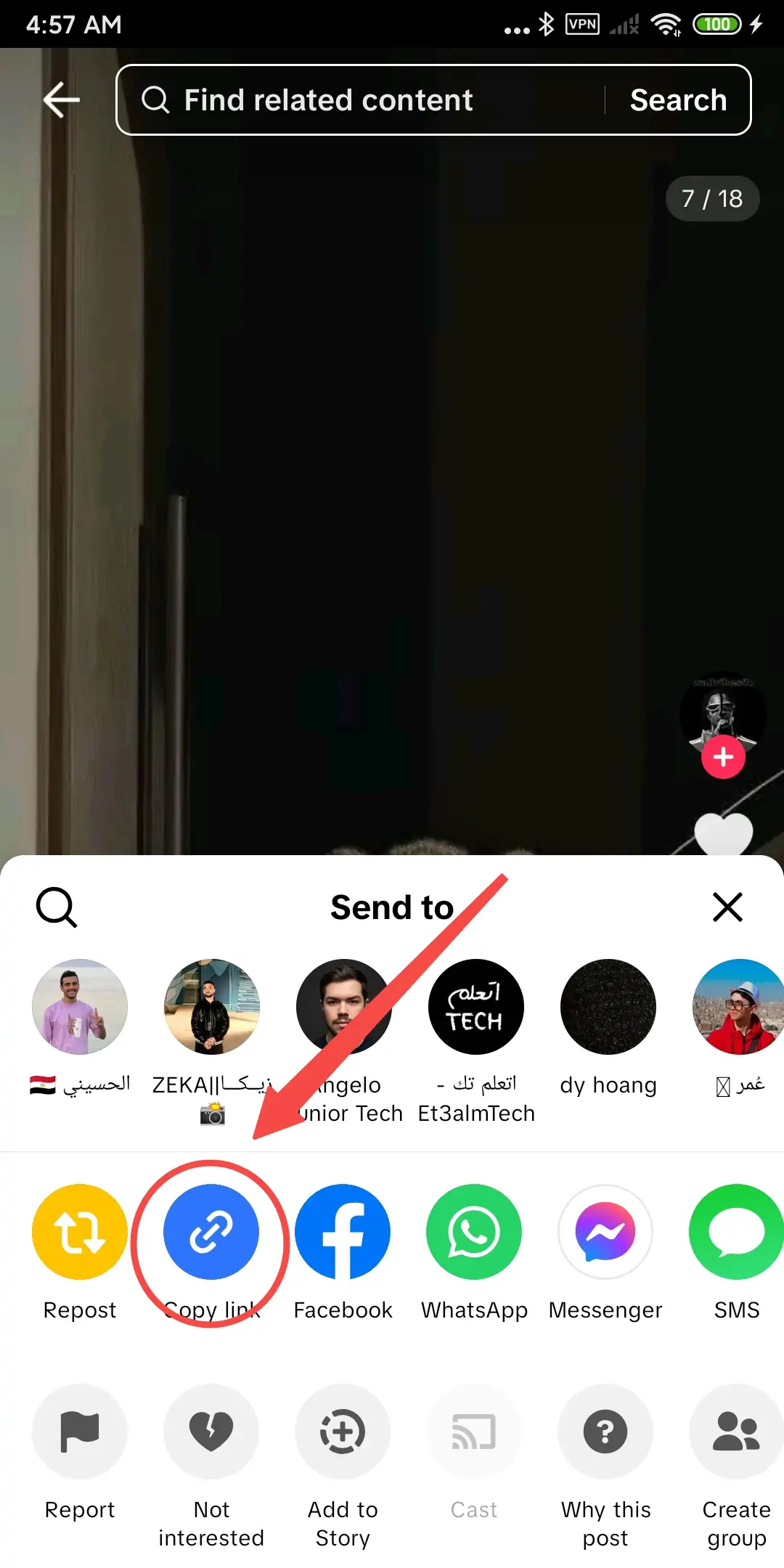
Open TikTok and find the photo or slideshow containing the wallpaper you want.
Swipe through the post first. This helps you confirm that the right image is included before you copy the link.
Step 2: Copy the TikTok Link
Tap the Share button on the post and select Copy link.
When using TikTok in a desktop browser, you can also copy the URL from the browser’s address bar.
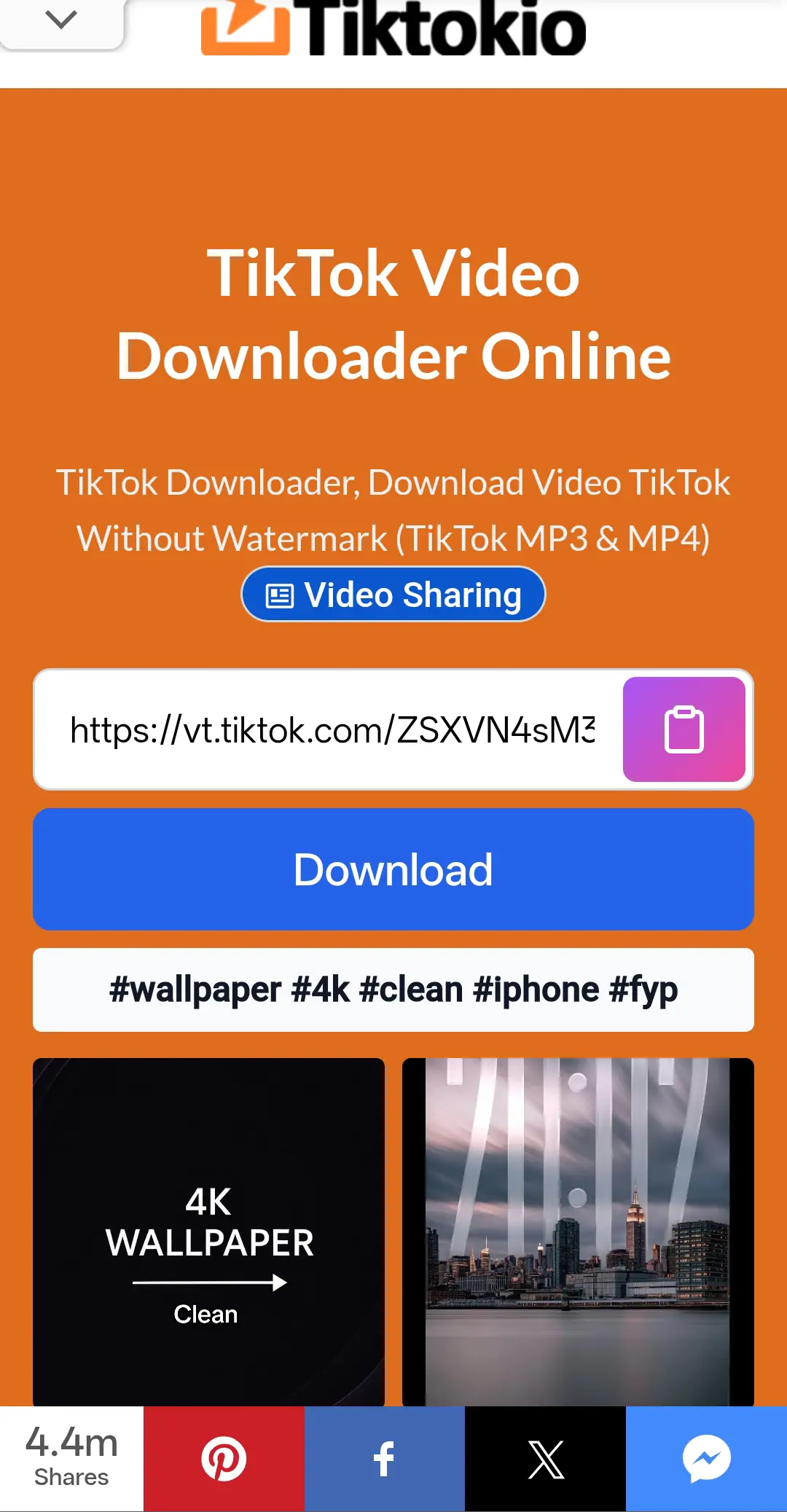
Step 3: Open TikTokio
Go to TikTokio.com in your browser.
Paste the copied TikTok link into the download box, then press the Download button. TikTokio will process the photo post and retrieve the available images.
Step 4: Choose a Wallpaper from the Slideshow
For a TikTok slideshow, the images appear separately. You can look through them and download only the wallpaper you want instead of saving the whole slideshow as a video.
To keep several wallpapers, download each photo separately. This preserves the original image format and makes the files easier to organize in your gallery.
Step 5: Save the Photo
Tap the download button below the selected image. The wallpaper will usually appear in your browser’s Downloads folder.
On a phone, you may need to open the downloaded image and select Save to Photos, Save image, or a similar option. The wording depends on your browser and device.
TikTokio works through a web browser on desktop computers, Android phones, iPhones, and tablets.
How to Download a TikTok Video Wallpaper in HD
Video wallpapers need a slightly different process, but you still start with the TikTok link.
Step 1: Find the Original Video
Open the TikTok video that contains the moving wallpaper.
Whenever possible, use the original creator’s post rather than a repost. Reposted videos may already have extra compression or a watermark added to the picture.
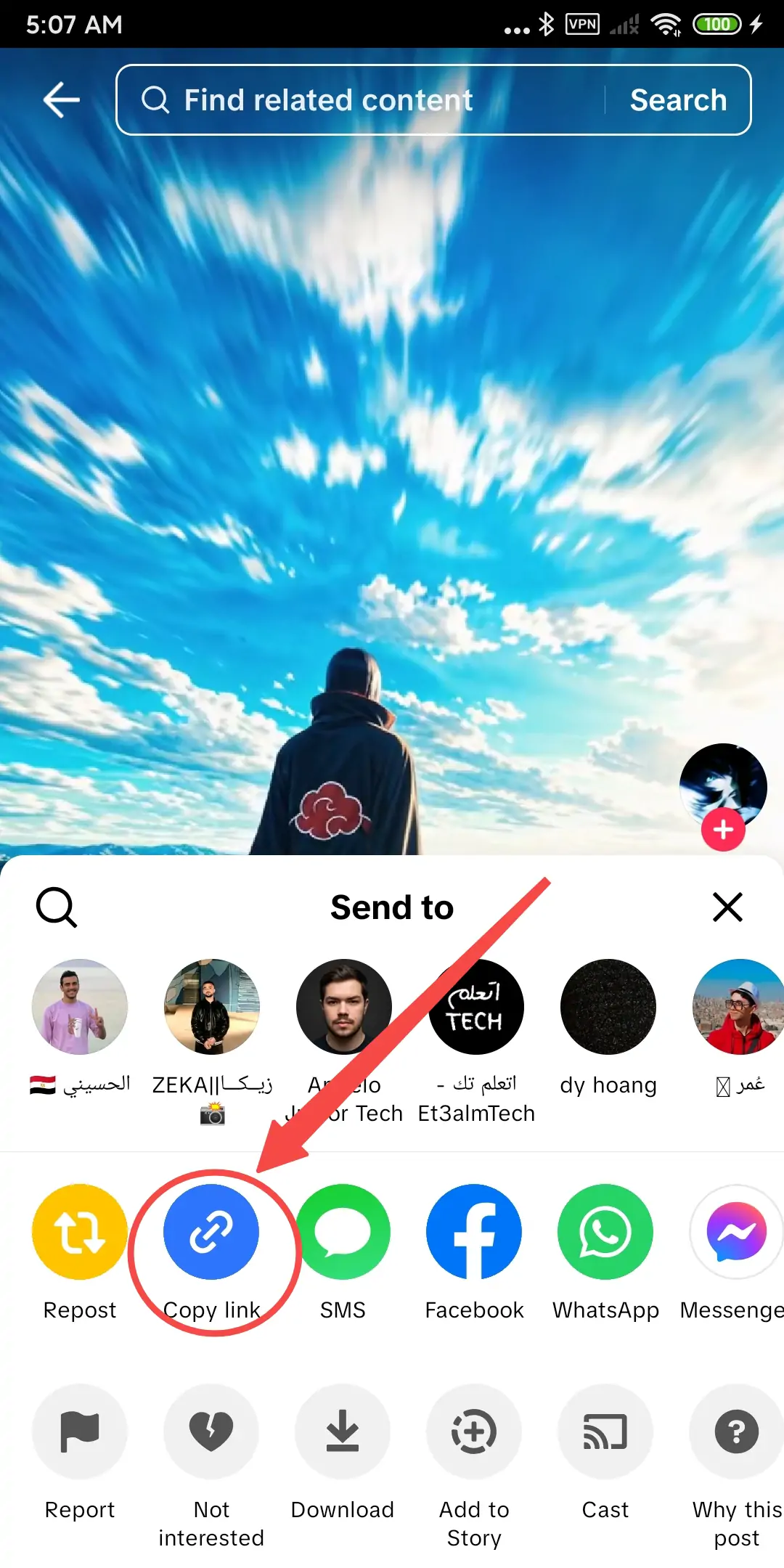
Step 2: Copy the Video Link
Tap Share, followed by Copy link.
Make sure you copy the link to the individual video rather than the creator’s profile page.
Step 3: Paste the Link into TikTokio
Open TikTokio.com and paste the link into the download box.
Press Download and wait while the video is processed. You do not need to upload the video manually.
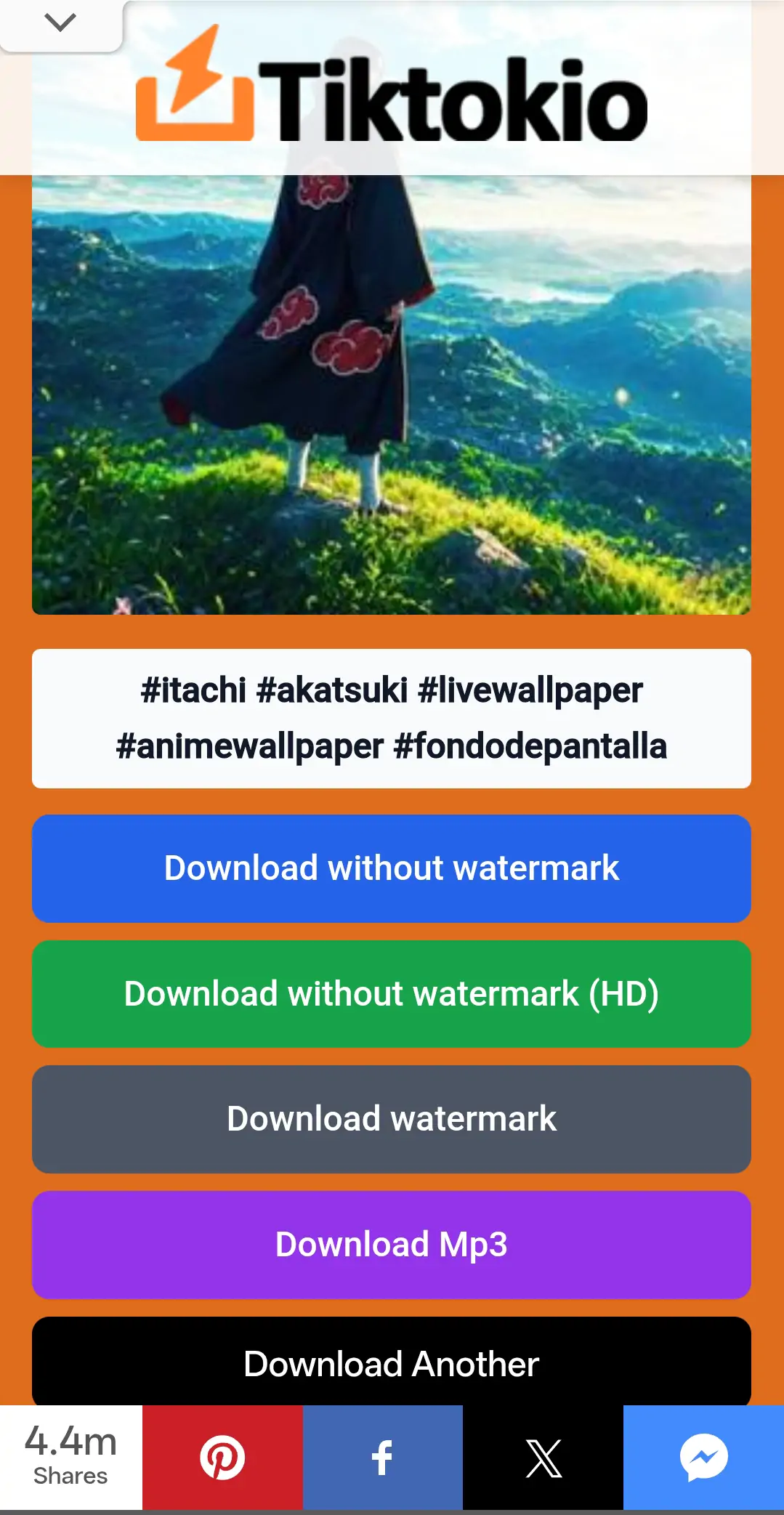
Step 4: Choose the HD Video Option
Select the watermark-free MP4 option in the best available quality. TikTokio supports HD TikTok video downloads without adding a watermark to the picture.
The downloaded file will only be true 4K when a 4K source is available. If the creator uploaded a lower-resolution video, downloading it cannot restore details that are missing from the source.
Step 5: Save the MP4 File
On Android or a computer, the MP4 will normally go into the Downloads folder.
On an iPhone, the video may first appear in the Files app. Open the file, tap the Share button, and select Save Video to add it to Photos.
How to Use the Downloaded Video as a Live Wallpaper
The process depends on your phone. Some Android devices accept video files directly, while iPhones require a Live Photo.
Set a TikTok Video as a Live Wallpaper on Android
First, check whether your phone has a built-in video wallpaper option:
-
Touch and hold an empty area of the Home Screen.
-
Open Wallpaper and style or Change wallpaper.
-
Choose Gallery and select the downloaded video.
-
Trim the clip if your phone asks you to.
-
Apply it to the Home Screen, Lock Screen, or both.
Samsung Galaxy phones support selecting and trimming videos from the Gallery for use as wallpaper. The exact screen options can vary by Galaxy model and One UI version.
Other Android brands may limit video wallpapers to the Lock Screen or may not support ordinary MP4 files at all. When no video option appears in your wallpaper settings, you will need a compatible live wallpaper app.
Keep the clip fairly short. A short, smooth loop is easier to use and takes up less storage than a long TikTok video.
Reminder: Downloading a file does not transfer ownership of the creator’s work. Copyright can protect original images and videos, so ask the creator for permission before reposting, selling, or using the wallpaper commercially.
Set a TikTok Video as a Live Wallpaper on iPhone
An iPhone cannot use a normal MP4 directly as an animated wallpaper. You must first turn the downloaded video into a Live Photo with a compatible video-to-Live-Photo tool.
Once the conversion is complete:
-
Open Settings and select Wallpaper.
-
Tap Add New Wallpaper.
-
Choose Photos, followed by Live Photo.
-
Select the converted wallpaper.
-
Make sure the play button is enabled.
-
Tap Add and apply it to the Lock Screen.
On iOS 17 or later, a Live Photo can play when you wake the iPhone. Apple supports Live Photos on the Lock Screen rather than using an ordinary MP4 as the wallpaper file.
Live wallpaper sound does not normally play on the Lock Screen, so choose the video for its movement rather than its audio.
How to Turn a TikTok Video into a Static Wallpaper
Sometimes the best wallpaper is a single frame from a TikTok video. You may like the scene but prefer a still background that does not move or use extra battery.
Start by downloading the watermark-free HD video through TikTokio. Working from the clean MP4 gives you a better result than taking a screenshot while TikTok captions and controls are still visible.
Open the downloaded video in a video editor or frame extraction tool. Move through it slowly until you find a sharp frame with little motion blur, then export that frame as an image.
Try to avoid frames captured during fast movement. Even an HD video can produce a soft image when the subject is moving quickly.
Once you have the image, crop it to match your phone’s vertical screen. Leave some space near the top for the clock and around the bottom for shortcuts or navigation controls.
Do not stretch a horizontal image to make it vertical. Cropping the sides or adding a blurred background will keep the main picture in its correct proportions.
Conclusion
Found a TikTok wallpaper you love? Copy its link, paste it into TikTokio, and save the photo or HD video without a watermark. You will have a clean file that is ready to crop, edit, or turn into your next wallpaper.